Begin with a dispatchable job
A job on a calendar is not necessarily ready for a technician. The service location may be unclear, the required part may not have arrived, or the customer may still be choosing a time. Dispatch software is useful when it makes those distinctions easier to manage, not when it fills every visible gap.
This guide follows a fictional day at Pine Service. Sam has a morning repair and an afternoon maintenance visit. Jo has a diagnostic visit. A part for Sam’s repair is delayed, and another customer asks for a same-day visit. The office must decide what can move without making an unsupported arrival promise.
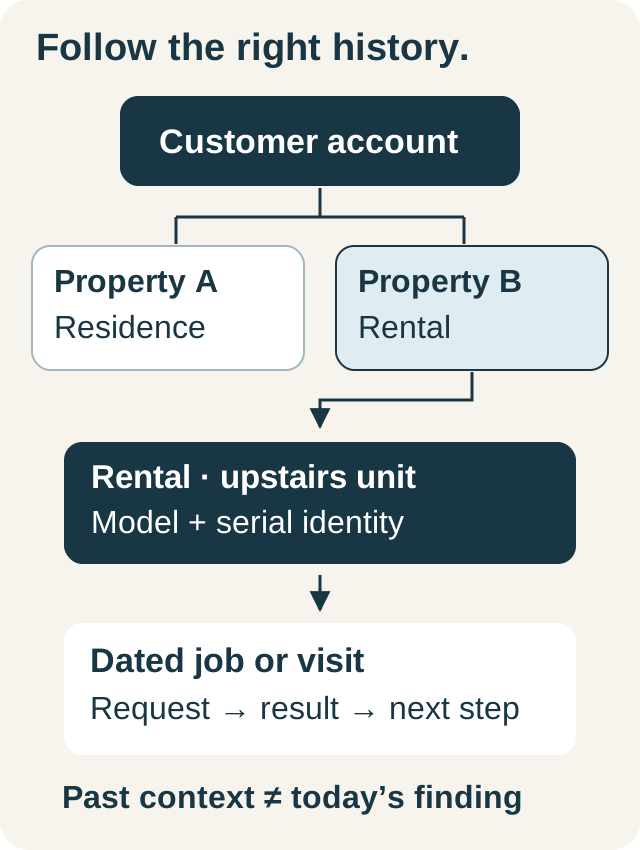
Before assigning work, establish a minimum job record: customer, exact service property, reported problem or agreed scope, expected duration, required skills, known parts or access constraints, and the person responsible for confirming the visit. “Needs service” is a request; a technician needs enough context to act on it.
Separate unassigned work from booked technician time
In IKOK, Schedule offers Dispatch, Month, Capacity, Status board, Technician, and Map views. Start with Dispatch for the day you are planning. Its unassigned queue keeps work without a technician visible alongside assigned jobs.
Review that queue intentionally. Unassigned jobs are not included as an individual technician’s booked stops. They still represent work someone needs to resolve. A low booked total can coexist with a large unassigned workload, so neither figure alone describes the day.
Create or open the job and verify the customer, service property, relevant equipment where available, work description, and start and end times. The scheduling form validates time order, but your office still supplies a realistic duration. A correctly saved short appointment does not prove the work will fit.
Use the board to change a real assignment
IKOK supports dragging a job between technician rows to reassign it and using supported schedule positions to reschedule it. Reassigning between rows preserves the current time. Moving to a time cell changes the scheduled time. Open job detail to review or edit the duration; do not assume a card edge is a duration-resize control.
Scheduling changes request a conflict check. If the system reports a conflict, inspect the affected jobs and resolve the overlap rather than repeatedly forcing the move. Save and reopen the job when verifying a complex change.
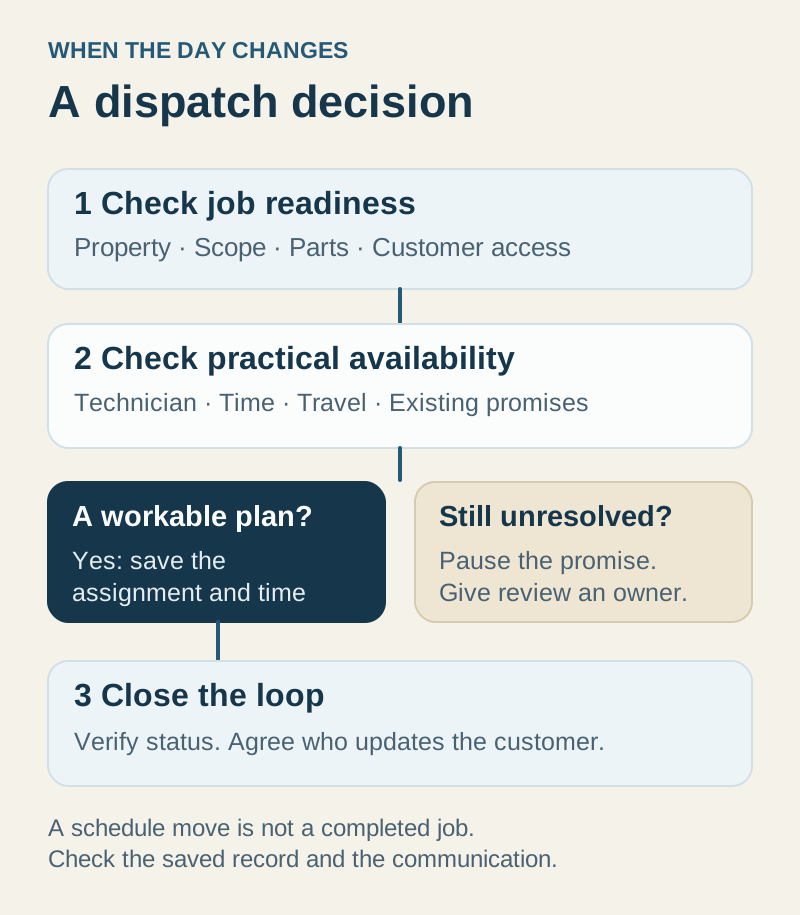
A schedule move is separate from a status change. Moving a repair to tomorrow should not itself mark the work complete. Use the status workflow to record what happened operationally, and leave a clear explanation for the next person who opens the record.
Work through the parts delay
Pine Service first confirms which part is delayed and whether Sam can do any useful work without it. The dispatcher keeps the customer’s original commitment visible in the working process, decides who will contact the customer, and checks the alternative appointment before saving a new one.
| Change | Check before moving work | Close the loop |
|---|---|---|
| Required part is unavailable | What can proceed, the likely availability of the part, and customer access | Record the constraint and confirm the revised plan with the customer |
| An appointment runs long | Remaining scope, the next visit’s location, and the next customer’s expectation | Adjust the plan and identify who sends the update |
| A same-day request arrives | Job readiness, suitable technician, realistic travel, and existing commitments | Offer a time only after the available plan has been checked |
| Customer requests a different date | Their preferred window and any visit dependencies | Save the change and make the new commitment unambiguous |
In the example, the new request cannot simply occupy the delayed repair’s visible space. Sam may need to collect the part later, and the maintenance customer still expects the afternoon visit. The dispatcher compares a complete sequence of work and travel before making the offer.
Use Capacity and Map as planning evidence
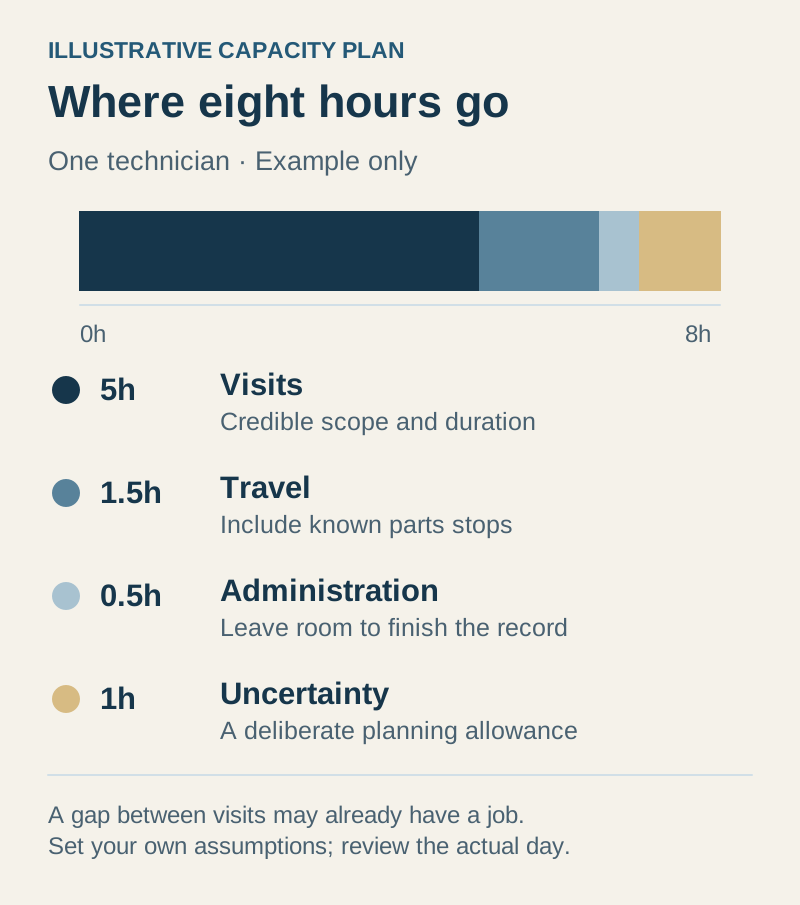
IKOK’s Capacity view calculates booked minutes from assigned job durations against configured working hours and working days. It also identifies unassigned load. This helps you inspect a busy day or an underused technician, provided the stored appointments and hours are credible.
It is not a demand forecast or a guarantee of availability. Travel, breaks, parts collection, overruns, and other commitments still need to be considered. Overlapping appointments also require attention; a booked-minute total does not resolve an overlap for you.
The Map view provides location context and supports reassignment interactions. It should not be presented as automatic route optimization. The office remains responsible for deciding a practical order and checking the factors that a map pin cannot show, such as access restrictions or a promised customer window.
Give the customer update an owner
After the schedule is changed, someone needs to explain the result. Decide whether the office or the authorized technician should respond, what information the customer needs, and where that exchange will be visible to the next staff member.
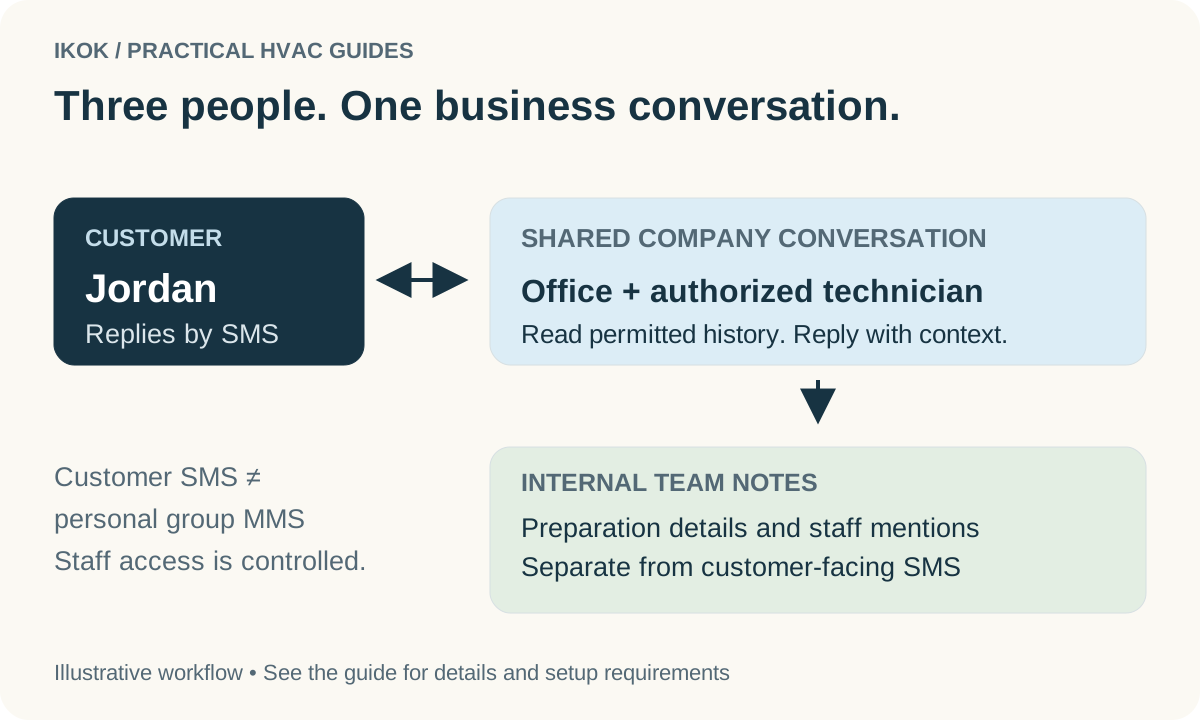
With IKOK’s paid SMS offering and a ready sender, an office user and authorized technician can work in the same customer conversation. A private internal note can preserve staff context without sending that text to the customer. Permissions and customer-number privacy still apply. Do not assume that a drag on the schedule automatically sends the particular message your customer needs.
The shared messaging guide covers that handoff. Use the existing HVAC dispatch checklist as a compact daily review.
A useful dispatch demo acceptance test
Ask the vendor to build Pine Service’s day with fictional records. Leave one job unassigned, reassign another, introduce a genuine overlap, and move the delayed repair to a new date. Verify the customer property and work description remain attached, the saved technician and time are correct, and job status is handled separately.
Finish by having another office user explain the revised day from the saved records. If that person must reconstruct the decisions from private messages, the handoff is still incomplete. A good dispatch workflow leaves the next person able to see what changed, what is promised, and what remains unresolved. Request an IKOK dispatch walkthrough using your own fictional version of the interrupted day.
A few practical questions
Before you put it to work
Does a schedule change also change a job’s status?
In IKOK, reassignment and rescheduling are separate from status changes. Verify both the saved appointment and the operational status when work is delayed, moved, or completed.
Does IKOK automatically optimize HVAC routes?
The verified schedule includes a map view, dispatch assignment, and capacity information. This guide does not claim automatic route optimization. Dispatchers still need to consider travel, access, parts, and customer commitments.