Close the job with enough information to invoice
An HVAC invoice is easier to explain when it follows the work the customer authorized. Before billing, the office needs the correct customer and service address, the completed scope, approved changes, applicable pricing, and any payment already recorded. If the technician has an unresolved recommendation, distinguish it from work that was actually performed.
Use a short closeout handoff: “Work completed; additional recommendation remains unapproved; invoice should include only the agreed repair.” That sentence prevents an office employee from turning every line in a service note into a charge.
In IKOK, customer and job context, quotes, invoices and service reports provide the records for that handoff. Customize the invoice wording and outgoing email to explain your service clearly. Reusable document templates are helpful, but customer-specific amounts and prior payments need review on each invoice.
Decide where each record starts
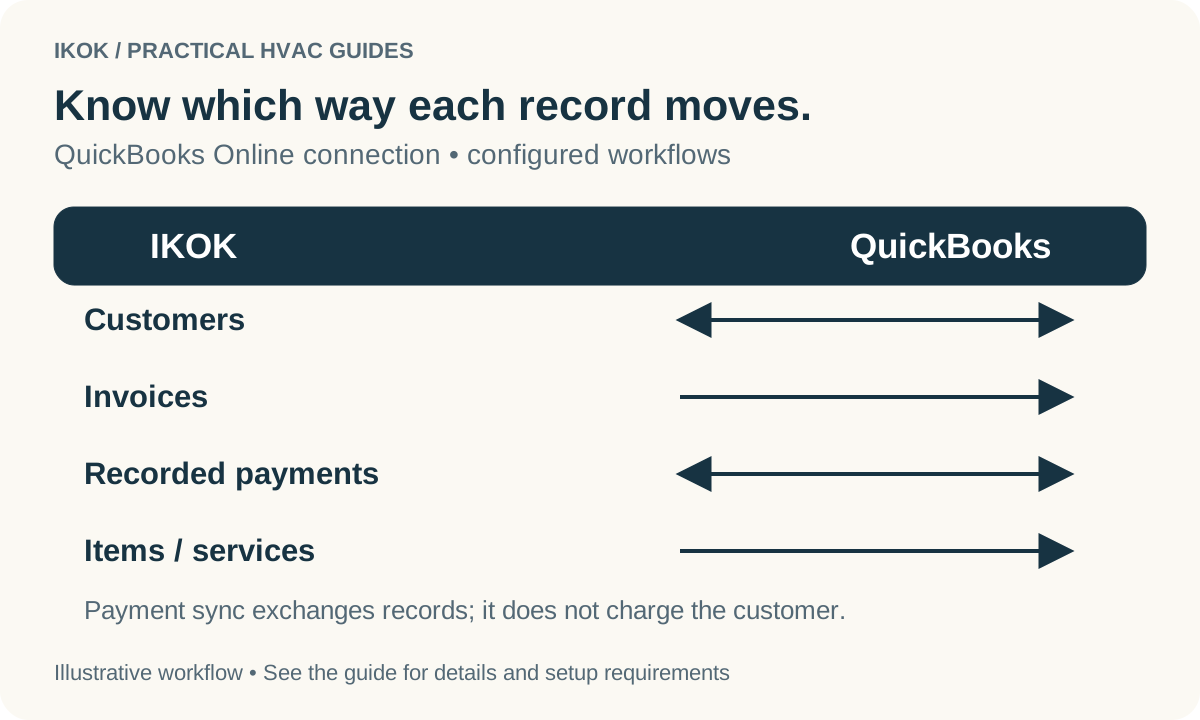
The IKOK integration is with QuickBooks Online. Its record directions are explicit:
| Record | Supported direction | Office decision |
|---|---|---|
| Customer | IKOK ↔ QuickBooks Online | Verify the matching customer before creating another record |
| Invoice | IKOK → QuickBooks Online | Create the service invoice in IKOK and review the linked accounting record |
| Recorded payment | IKOK ↔ QuickBooks Online | Confirm which invoice and customer the payment belongs to |
| Supported item or service | IKOK → QuickBooks Online | Review the configured item mapping and accounting setup |
Connection, permissions, record eligibility and sync settings affect the available operations. These directions do not mean every change is instant or that every type of accounting transaction is handled identically. Agree who owns invoice edits and how exceptions will be reviewed before enabling a broad workflow. The integration overview explains the supported scope.
Walk through a partial-payment example
This fictional example uses an invoice total of $1,200, including any applicable charges already reflected in that total. A $300 payment is recorded and correctly applied to that invoice. The remaining balance is $900. The office needs to verify three relationships, not just three numbers:
- The $1,200 invoice belongs to the intended customer and job.
- The $300 record represents the actual payment and is applied to that invoice.
- The corresponding QuickBooks records represent the same transaction rather than a duplicate customer, invoice or payment.
A synchronized payment record is not a new charge to the homeowner. It is also not independent proof that funds settled in the bank. Collection, settlement and accounting synchronization are separate parts of the workflow. If an amount or status changes later, investigate the underlying records before resending an invoice or asking the customer to pay again.
If a customer says “I already paid,” pause the routine follow-up long enough to check. Search for the payment, its application and any unresolved processing status. Do not use a second payment attempt as a way to test the integration.
Give the invoice email a useful job
A good invoice email explains what the invoice covers and the action the customer should take. In IKOK, Invoice Email and Email Studio support template selection and a rendered preview, using the relevant company and document context. Keep the subject recognizable and the body specific.
For the example above, the office might write: “Your repair invoice is ready. It shows the $300 payment already applied and the remaining balance of $900. Please review the invoice and let us know if you have a question about the work or payment record.” Use that wording only after verifying the amounts on the actual invoice.
Customize the reusable introduction, service language and company presentation. Preview the final document link and any attachments. Do not hard-code a balance in a reusable template or let an old service address survive from a copied message.
Review exceptions instead of trusting a green badge
| Situation | Check before taking action |
|---|---|
| Customer appears twice | Contact identity and the existing linked record |
| Invoice was edited after synchronization | The current invoice, linked accounting record and sync history |
| Payment exists but balance looks wrong | Invoice application, amount and transaction status |
| Sync needs attention | Connected company, permissions, settings and the specific error |
| Customer disputes the work | Approved scope, service evidence and the actual invoice lines |
Keep an exception list with an owner and a next check. Do not repeatedly push the same record without understanding the outcome. Your bookkeeper's reconciliation process remains essential even when records move successfully between systems.
A practical end-of-day routine
Review completed jobs that have not been invoiced, invoices prepared but not sent, sent invoices with a customer question, and accounting sync exceptions. Handle those as different queues. Measure how long each handoff takes in your own business before deciding which one needs automation.
Bring a sample invoice and payment to an IKOK demonstration. Ask to customize the invoice and email, explain the supported QuickBooks directions, and show where the office reviews the result. Use demonstration records for the walkthrough; a real customer charge is not needed to evaluate the process.