Define a useful outcome before choosing a voice
For an HVAC company, a successful phone workflow leaves the caller with an accurate next step and the team with enough context to act. It might connect an existing customer to the assigned technician, record a callback request, or book an appointment through enabled scheduling tools. Those are different outcomes, and the greeting should not promise more than the configured process can deliver.
Write down the questions callers actually ask: “Where is my technician?”, “Can I arrange a visit?”, “Can someone explain my proposal?” and “I need to change my appointment.” Decide which requests the office handles and which your configured tools can complete.
Example one: a business-hours keypad menu
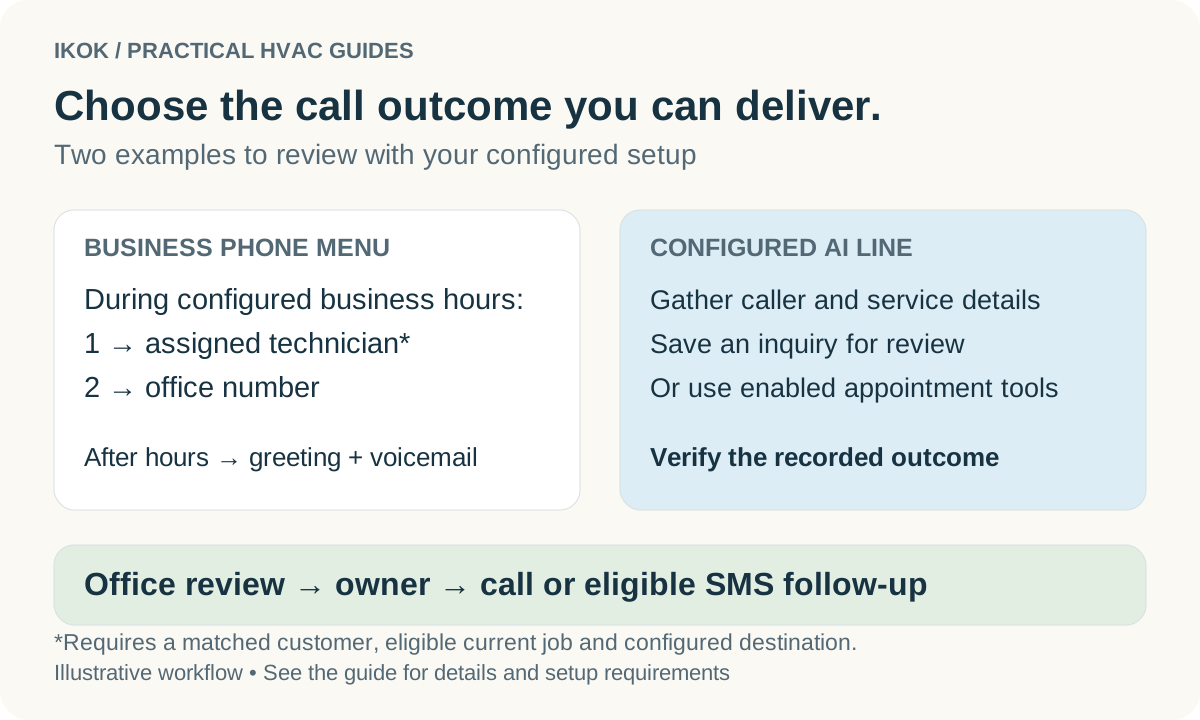
IKOK's business phone system supports configured business hours and a spoken greeting. A practical menu can offer an assigned-technician route for a customer with an eligible current job and a separate office route.
| Caller situation | Example handling | Setup to verify |
|---|---|---|
| Existing customer asks about today's job | Press 1 for the assigned technician | Customer match, eligible job and technician destination |
| Caller needs the office | Press 2 for the office | Correct configured office number |
| Caller reaches the line after hours | After-hours greeting and voicemail | Business hours, timezone and voicemail process |
A sample greeting is: “Thanks for calling Cedar Service. Press 1 to reach the technician assigned to your current visit, or press 2 for our office.” Use wording appropriate to the routes you actually enable.
Do not assume this example includes simultaneous ringing, a visual PBX builder or every possible no-answer fallback. Test an unknown caller, a customer without an eligible job and an unanswered destination with the team configuring the line. Confirm what the caller hears before advertising the flow.
Example two: an AI receptionist for intake
On a configured AI line, IKOK's AI receptionist can gather a service request and use enabled customer-context or appointment tools. For a fictional no-cooling inquiry, useful intake details include the caller's name, callback information, service address, the issue, urgency and preferred time.
Keep the intake focused on arranging the next appropriate step. It should not improvise technical repair instructions, guarantee an arrival time without a booking result, or quote an unapproved service price. Configure the business rules and available tools around the way your office actually operates.
The output can be a saved inquiry for office review. With scheduling tools enabled, the receptionist can check availability and book, reschedule or cancel appointments through the supported workflow. A caller saying “tomorrow afternoon would work” is a preference; it is not proof that an appointment was booked.
Review the action as well as the conversation
The office can review available AI-call transcripts, summaries, recorded actions and provider-supplied recordings. Use these to answer two separate questions: what did the customer request, and what did the system actually do?
If a summary says the caller wanted Friday, check whether the recorded appointment action succeeded. If only a callback request was saved, assign someone to call. Listening back can clarify ambiguous details when a recording is available; recording and analysis availability depend on the configured provider.
The familiar business number also matters for outbound calling. IKOK customer-record click-to-call can call the staff member first and then bridge to the customer using business caller ID. Walk through the actual configuration in your demonstration rather than assuming every staff device behaves identically.
Continue by SMS when appropriate
After reviewing the inquiry, an authorized office employee might send: “Hi Jordan, this is Maya from Cedar Service. We received your A/C request. What is a good time for our office to call and confirm the next step?” That wording is an illustrative staff follow-up, not a promise that every AI call automatically sends a text.
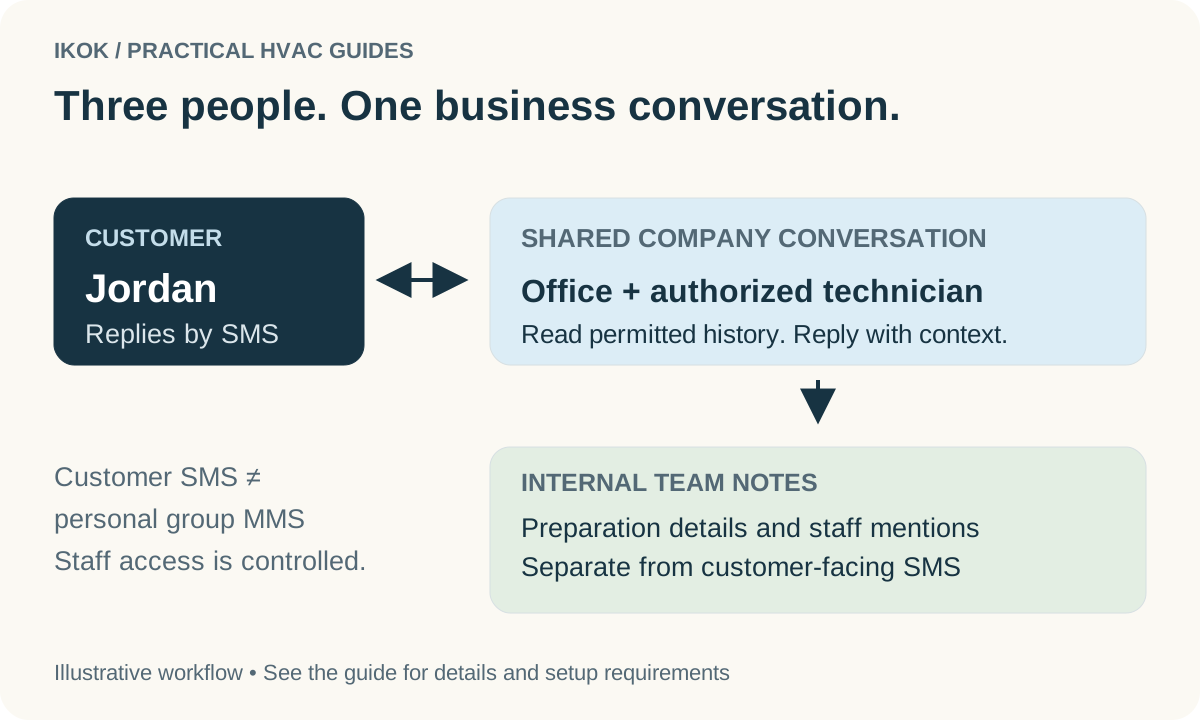
The shared SMS inbox lets authorized office staff and technicians continue the customer conversation. Sending or scheduling a message requires a separately activated sender, appropriate permissions and applicable consent. Supported reminder automations need their own configuration. A saved AI inquiry does not override those requirements.
Bring six calls to your evaluation
Use demonstration details and test a returning customer, a new caller, an after-hours request, a request to reschedule, a question outside the receptionist's knowledge, and a failed or unavailable appointment action. For each one, write down what the caller hears, what is recorded and who owns the next step.
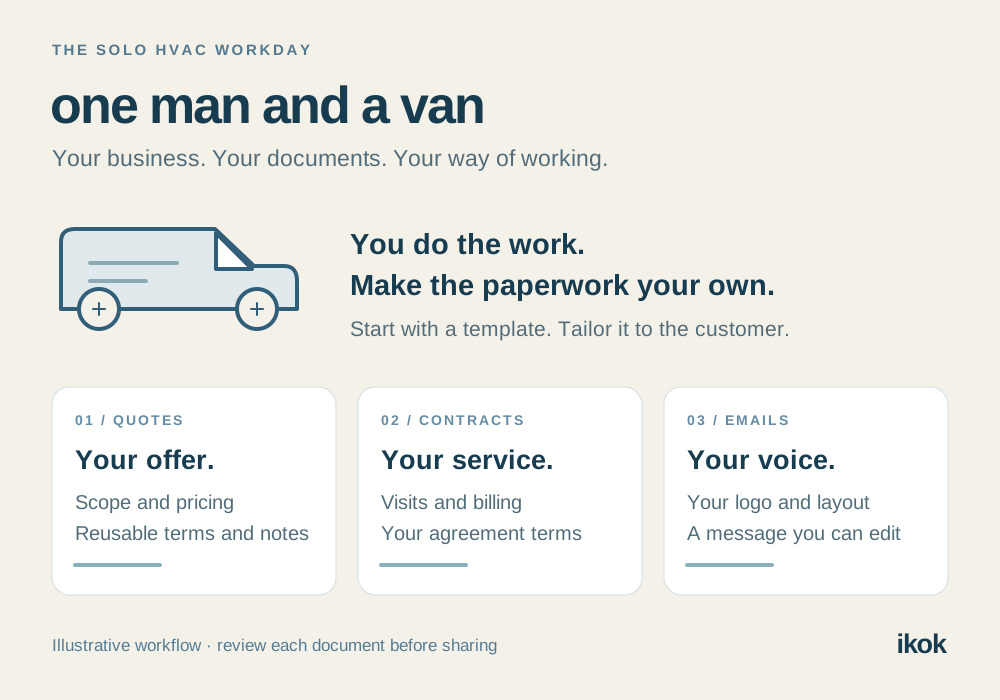
Customize the greeting, business information, intake questions and permitted actions around your company. Then compare the requested setup with the quoted membership, provider usage and additional work. Personalization is valuable when it makes the process more accurate, not just when the voice sounds different.
Ask IKOK to walk through your call flow. Bring your current greeting and common call scenarios. A useful demonstration finishes in the office workspace with a clear inquiry or appointment outcome and a practical follow-up—not at the end of the audio sample.